










Everything in the studio is free to use on screen: the layout, the Estimate, the Cut list, Sliver Guard. The Project Blueprint is the PDF version of that work, formatted for someone who is not looking at your screen.
What is in the PDF
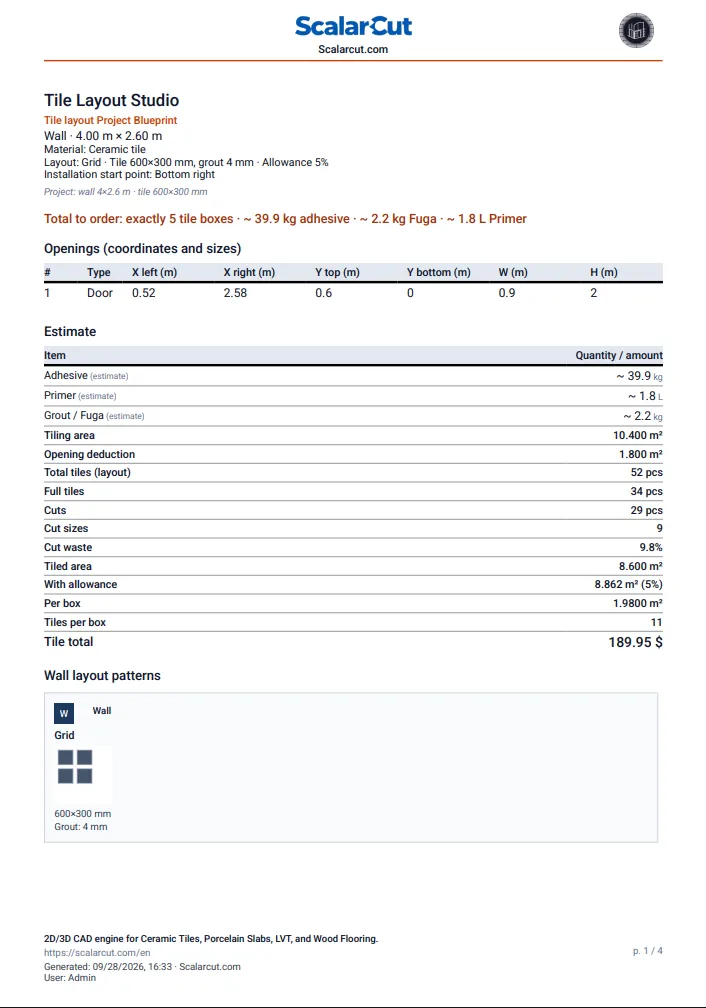
Page 1 is the summary:
- Wall or floor size, material, pattern, joint, allowance and the Installation start point
- A red Total to order line: boxes, adhesive, grout, primer
- Openings (coordinates and sizes): X left, X right, Y top, Y bottom, width and height of every door and window
- Estimate: the same rows as on screen, plus Tiles per box
- A thumbnail of the pattern
The following pages hold:
- The layout drawing with openings and the start point marked
- The Cut list with size, quantity and cut type for every cut piece, including the FRAGILE and L-CUT marks you see on screen
- The Cut Recycling Engine recipes: which cuts come from the same tile and what is left over. These are in the PDF on every plan, including Free, even though Free sees them blurred on screen.
- For a room project: the surfaces you ticked in "What should we include in the Blueprint?"
- If you generated a 3D render: a Visualization page with that render
The footer shows when it was generated and by which account. Download a sample Blueprint to see the full format.
How to export
Two buttons, same result: the PDF downloads straight away. There is no preview step.
- The print icon in the header (Download Project Blueprint).
- The green Blueprint button in the toolbar under the canvas.

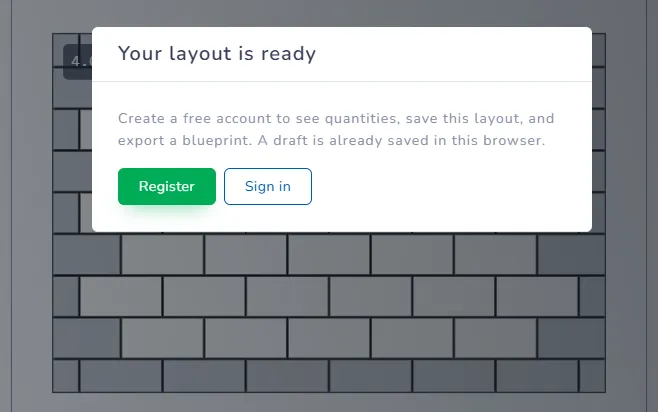
You need to be signed in. In demo, both open the "Your layout is ready" dialog: "Create a free account to see the estimate, save this layout, and export a blueprint. A draft is already saved in this browser." with Register and Sign in.
Monthly limits
- Free: 3 Blueprints a month
- Home & DIY: 10 a month
- Shop: unlimited
The count resets on the first day of each calendar month. The studio warns you when you have one left.
Downloading the same layout again does not use another Blueprint. As long as nothing has changed, you can re-download as often as you like: reprinting for the tiler, sending it to a second shop, opening it on another device. Changing the wall size, an opening, the tile, the joint or the pattern makes a new layout, and the next download counts as a new Blueprint.
When you reach the limit
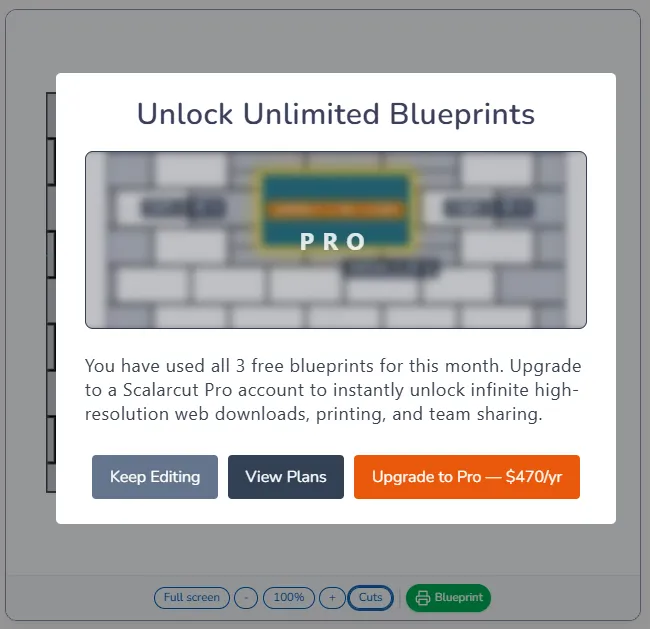
You see the dialog Unlock Unlimited Blueprints: "You have used all 3 free blueprints for this month." Three buttons: Keep Editing closes it, View Plans opens the pricing page, and the orange Upgrade button goes straight to the yearly Shop plan checkout.
Nothing else changes. The layout, the Estimate and the Cut list stay on screen and you can keep working, save, and export again next month or after upgrading.
Before you export
- Clear the Sliver Guard warning, or decide with the installer which Fragile pieces are acceptable.
- Enter Tiles per box and Box price if you want Boxes and Tile total on the PDF.
- Name the project. The title goes on the PDF.
Troubleshooting
- The button does nothing and you are on a Free account: check the dialog; you may be at 3.
- You upgraded and are still blocked: wait up to 5 minutes after checkout, then reload the studio. If nothing changes, write to hi@scalarcut.com with your transaction number.
- The PDF is missing a wall: in room mode, the Blueprint only includes the surfaces you tick in "What should we include in the Blueprint?".
Next: Create your first layout · Thin cuts and Sliver Guard · How many tiles do I need