










Square metres tell you the area. The Cut list tells you the pieces. Open it before you order, and hand the same list to the person who cuts.
Open the Cut list
Under the canvas, Cuts. The same list opens from the green icon beside Cuts on the Estimate.
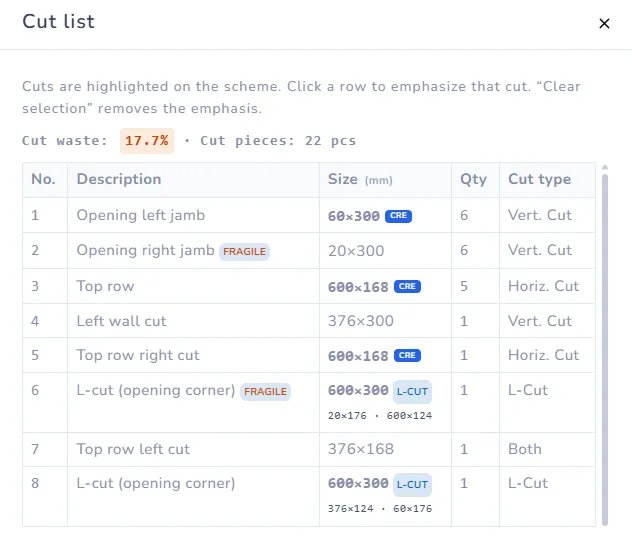
The header is one line, for example "Cut waste: 17.7% · Cut pieces: 22 pcs". Cut waste here is the offcut measured on this layout. It is not the Allowance, % you set on the Material tab. Allowance is what you add when you buy. Cut waste is what the cuts on this wall actually throw away.
Size, quantity, and cut type
Columns: No., Description, Size (mm), Qty, Cut type.
- Description is where the piece sits: top row, beside the door, and so on.
- Size is the piece in millimetres.
- Qty is how many pieces share that size.
- Cut type is one of Vert. Cut, Horiz. Cut, Both, or L-Cut. Vertical is a cut across the width, horizontal across the height, Both means the piece is cut on both, and L-Cut is the piece that wraps a corner of a door or window.
Click a row. Those pieces light up on the canvas. Clear selection turns that off.
Fragile, L-cut, and CRE
- Fragile — narrower than your Minimum cut (50 mm unless you changed it). It is still on the list. The studio does not hide it. Fix it with Sliver Guard, or agree with the tiler that this piece is acceptable.
- L-cut — both arms are written under the tile size, for example 600×300 with arms 20×176 and 600×124. Order and cut it as one piece, not as two strips.
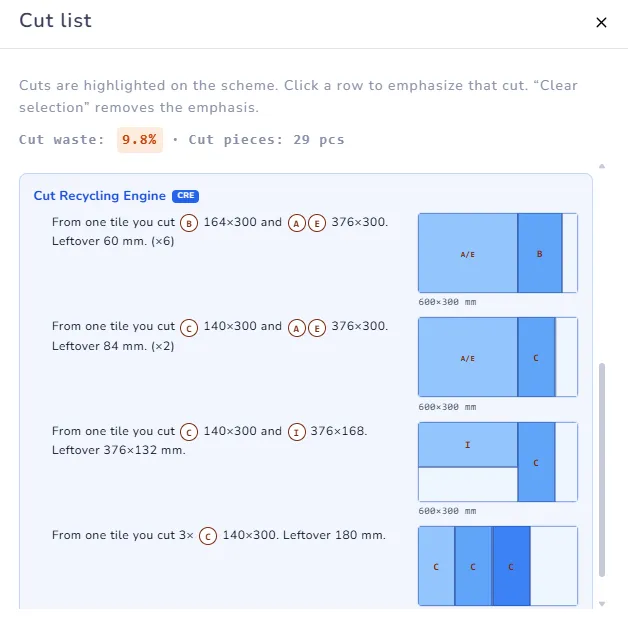
- CRE — this piece comes off a tile that also supplies another piece. Under the rows, Cut Recycling Engine shows the recipe: "From one tile you cut B 164×300 and A/E 376×300. Leftover 60 mm. (×6)", with a diagram of that tile.
On a guest visit and on a Free account that recipe block is blurred. Home & DIY and Shop see it on screen. Every Project Blueprint prints the recipes, on every plan.
Hand the list to the tiler
Order from Total tiles and Boxes on the Estimate, then give the tiler the Cut list so the boxes are cut the way the layout was drawn. The same rows are in the Project Blueprint. If you change the pattern, the start point, or an opening, open the list again — yesterday's list belongs to yesterday's layout.
Next: Your first layout · Project Blueprint